Last Modified:
11/30/2001

|

|
|
|
|
Clickable Image Maps with Frames in DreamWeaver
|
|
It is very easy to create a clickable image map with frames
in Dream Weaver, test it,
and transport it to your Web site. Consider the following GIF image:
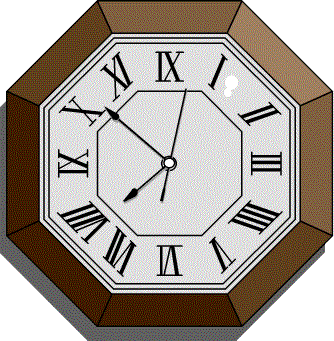
In this case we will create a frameset with a left and right frame with
the clock image in the left frame.
We will carve out two polygonal regions in the inside of
the clock face, link these regions to two different URLs, and then display
the URLs in the right frame when they are clicked on. We create
such an image map as follows:
- Invoke Dream Weaver
- Create a site by clicking Open > Site
- Create a frameset by clicking on the Common
link in the toolbar on the left to expose various options, such as
Frames
- Click on the frame icon in the upper left to create a simple
left-right frame and use the mouse to drag the frame boundary
nearly half way to the right
- Drag the clock1.gif to the left frame
- Save all of the frames in the frameset by clicking
File > Save All Frames. This opens a menu that
highligts each of the three frames in the frameset (the overall
frameset, the left frame, and the right frame) and lets you name them,
for example, frmset.htm, left.htm, right.htm
- Click on the clock image and in the inspector menu
that opens up below, carve out two polygon regions, link them to
URLs, and set the Target element to "mainframe"
- Because Dreamweaver adds a "/" before the file names, you cannot
preview the results in the normal way. Instead, in the PC site
directory where they are stored, edit the "left.htm" and the
"frmset.htm" files by removing the "/" in front of all file
names. Then drag "frmset.htm" to any browser window to test the
image map
- Transport all of the files in your PC site directory to your web
server using
SSH Secure FTP